 n8n
n8n Claude Code
 Kilo Code
 Cline
Cline OpenCode
 OpenClaw
 Hermes Agent
Integration: Cline with Lunos
This guide shows how to connect Cline to Lunos using the OpenAI Compatible provider so you can use Lunos models as your AI coding assistant directly in VS Code.
What is Cline?
Cline is an autonomous AI coding assistant that lives in your VS Code editor. It can create and edit files, run terminal commands, use browser automation, and help you build complex projects — all through natural language. It supports multiple AI providers via its OpenAI Compatible provider setting.
Prerequisites
- Cline extension installed in VS Code (or a VS Code fork like Cursor/Windsurf)
- Lunos API key (get one from your dashboard)
- Lunos base URL:
https://api.lunos.tech/v1
Setup
Follow the steps below in order.
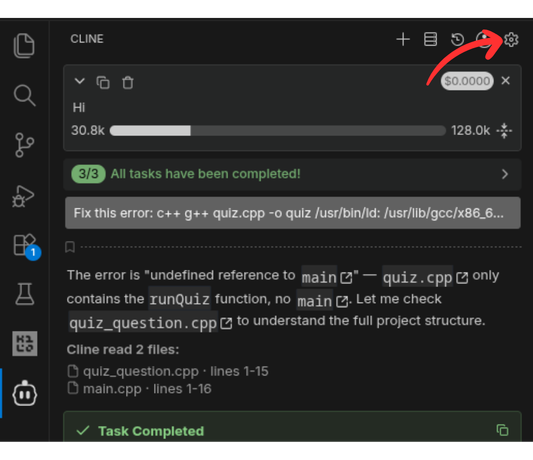
1) Open Cline settings
Open the Cline panel in VS Code and click the settings/gear icon (⚙️) to open the provider configuration.
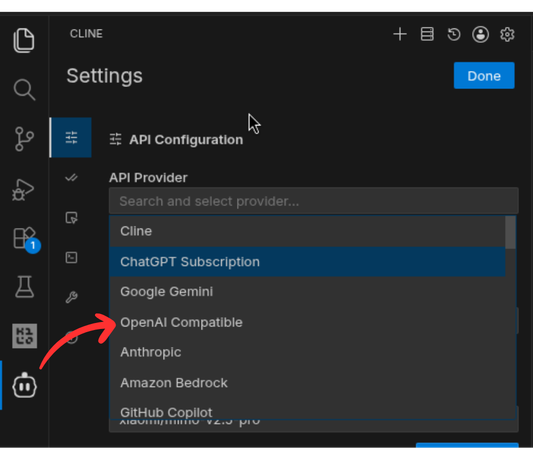
2) Select OpenAI Compatible provider
In the API Provider dropdown, select "OpenAI Compatible".
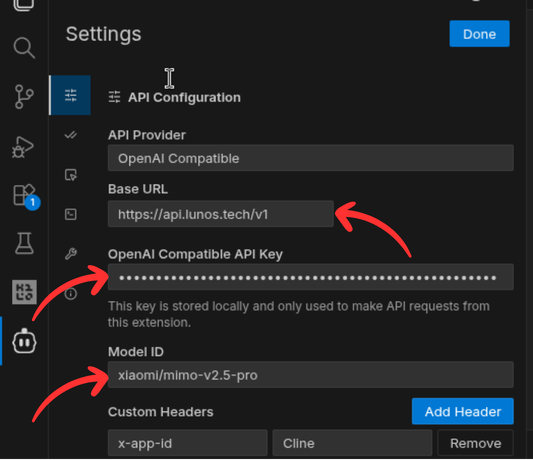
3) Configure the connection
Fill in the following fields:
| Field | Value |
|---|---|
| Base URL | https://api.lunos.tech/v1 |
| API Key | Your Lunos API key |
| Model ID | A model from your Lunos dashboard (e.g. anthropic/claude-sonnet-4-20250514) |
4) (Optional) Configure model info
Under Model Configuration, you can optionally set:
- Context Window: Set based on the model you chose (check the models page for details)
- Max Output Tokens: Adjust based on your needs
- Image Support: Enable if using a vision-capable model
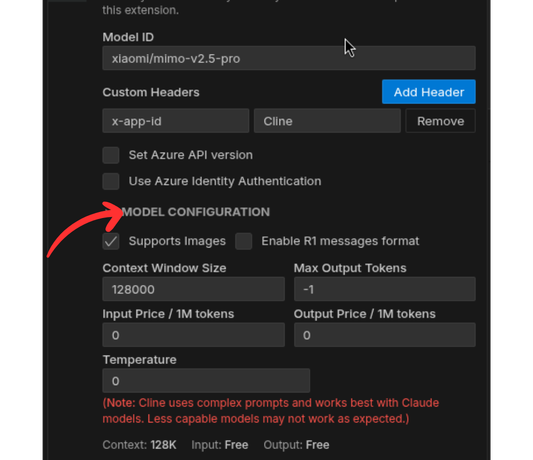
5) Verify the connection
Click the Verify button (or start a conversation) to confirm Cline can reach Lunos. If successful, you're ready to code with Lunos-powered AI.
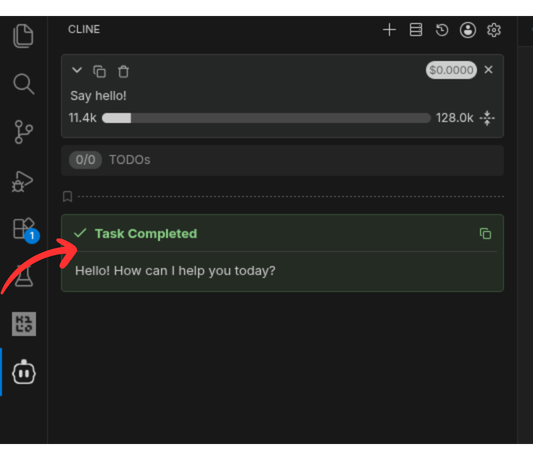
Usage Tips
- Model switching: Change the Model ID field anytime to switch between Lunos models without reconfiguring the provider.
- Plan & Act modes: Cline supports Plan mode (thinking/planning) and Act mode (executing changes). Both work with Lunos models.
- Custom instructions: Use Cline's rules/custom instructions feature to tailor the AI behavior for your project.
Troubleshooting
Auth errors (401/403)
- Verify the API key is correct and active in your dashboard.
- Ensure the key has not been revoked or expired.
Model not found
- Confirm the Model ID matches exactly with a model available in your Lunos models list.
- Model IDs are case-sensitive.
Connection timeout or network errors
- Confirm the base URL is
https://api.lunos.tech/v1(with the/v1suffix). - Check that your network allows outbound HTTPS connections.
Unexpected or empty responses
- Some models have different capabilities. If tool use or vision isn't working, verify the model supports those features.
- Try increasing the Max Output Tokens in Model Configuration.
Security
- Never commit API keys into repositories.
- Use Cline's
.clineignorefile to prevent sensitive files from being read by the AI. - Prefer separate Lunos API keys per environment (dev/staging/prod).
On this page
No headings found on this page.